Step 3 - Use keyboard keys to navigate in the air conditioning settings
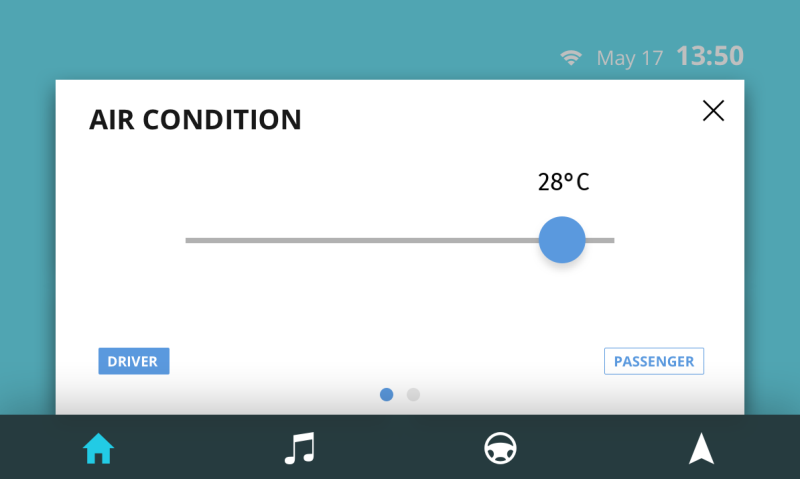
In this step you create keyboard navigation for the Driver and Passenger application screens and use keys to set the values of the sliders which control the air conditioning temperature.
Create keyboard navigation between the Driver and Passenger screens
In this section you create keyboard navigation to switch between the Driver and Passenger application screens.
To create keyboard navigation between the Driver and Passenger screens:
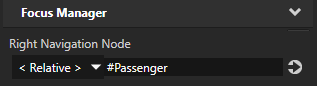
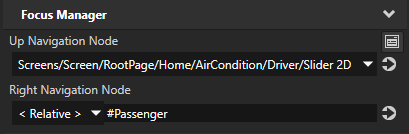
In the Project > RootPage > Home > AirCondition select the Driver node, in the Properties add the Right Navigation Node property, and set it to #Passenger. You set focus from the Driver node to the Passenger node when the user presses the → (Right Arrow) key on their keyboard.
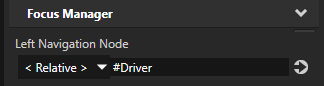
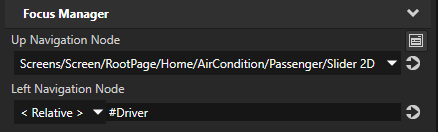
In the Project > RootPage > Home > AirCondition select the Passenger node, in the Properties add the Left Navigation Node property and set it to #Driver. You set focus from the Passenger node to the Driver node when the user presses the ← (Left Arrow) key on their keyboard.
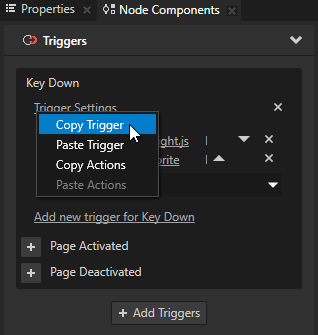
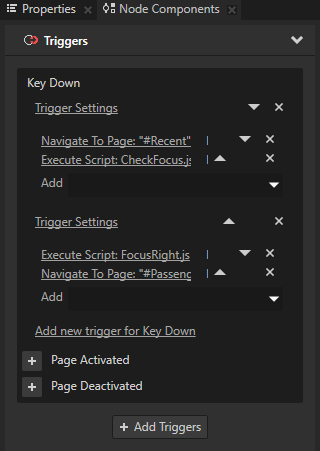
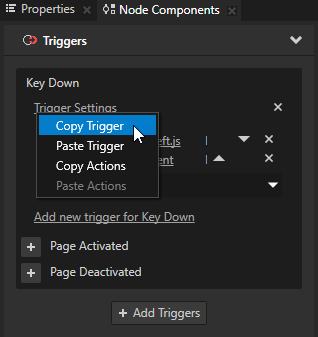
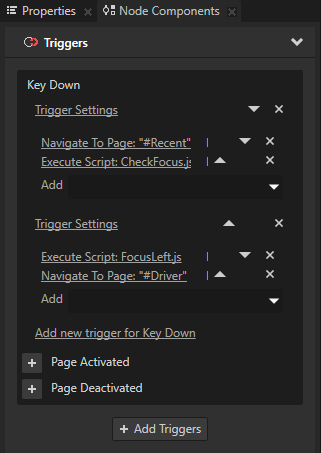
In the Project > RootPage > Home select the Recent node, in the Node Components in the Key Down trigger right-click Trigger Settings, and select Copy Trigger.
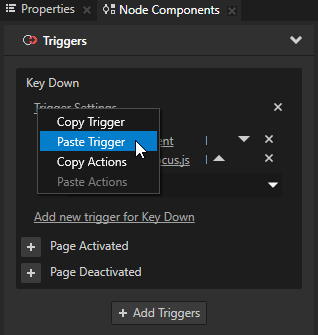
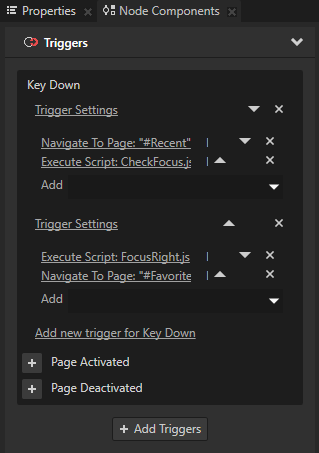
In the Project > RootPage > Home > AirCondition select the Driver node, in the Node Components in the Key Down trigger right-click the Trigger Settings, and select Paste Trigger. You use this trigger to navigate from the Driver application screen to the Passenger application screen which you set in the Right Navigation Node property in step 1.
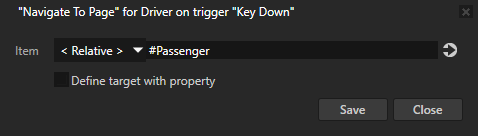
In the Project > RootPage > Home > AirCondition select the Driver node and in the Node Components for the trigger you pasted in the previous step in the Navigate to Page action set the Item to #Passenger.
In the Project > RootPage > Home select the Favorite node, in the Node Components in the Key Down trigger right-click the Trigger Settings, and select Copy Trigger.
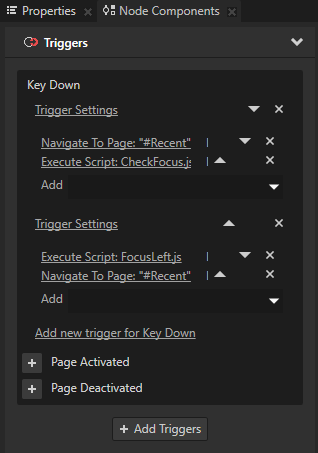
In the Project > RootPage > Home > AirCondition select the Passenger node, in the Node Components in the Key Down trigger right-click the Trigger Settings, and select Paste Trigger.
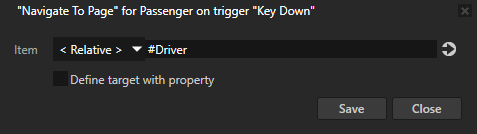
In the Project > RootPage > Home > AirCondition select the Passenger node and in the Node Components for the trigger you pasted in the previous step in the Navigate to Page action set the Item to #Driver.
In the Preview in the AirCondition screen use the → (Right Arrow) and ← (Left Arrow) keys to navigate between the Driver and Passenger screens.
Set keyboard keys to move a slider
In this section you create keyboard navigation to set the values of the sliders which control the air conditioning temperature.
To set keyboard keys to move a slider:
In the Project > RootPage > Home > AirCondition select the Driver node, in the Properties add the Up Navigation Node property, and set it to Screens/Screen/RootPage/Home/AirCondition/Driver/Slider 2D. You use this trigger to set focus to the Slider 2D node in the Driver node. When the Slider 2D node has focus, you can use the ← (Left Arrow) and → (Right Arrow) keyboard keys to move the slider knob.
Repeat the previous step for the Passenger node but set the Up Navigation Node property to Screens/Screen/RootPage/Home/AirCondition/Passenger/Slider 2D.
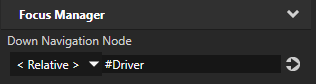
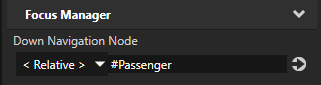
In the Project > RootPage > Home > AirCondition > Driver select the Slider 2D node, in the Properties add the Down Navigation Node property, and set it to #Driver. You set focus from the Slider 2D node back to the Driver node when the user presses the ↓ (Down Arrow) key on their keyboard.
Repeat the previous step for the RootPage > Home > AirCondition > Passenger > Slider 2D node but set the Down Navigation Node property to #Passenger.
Show when a slider is focused
In this section you create visualization which shows the user when the sliders are focused.
To show when a slider is focused:
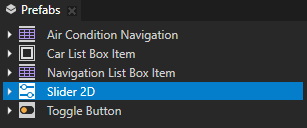
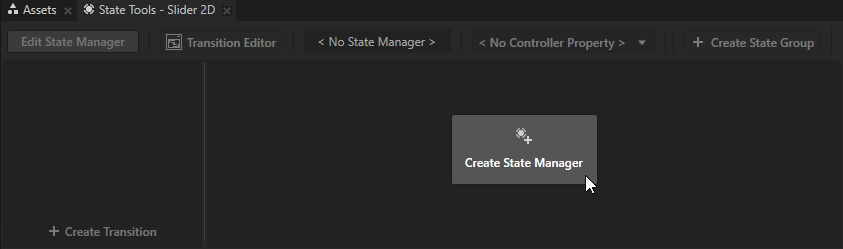
In the Prefabs select the Slider 2D prefab and in the State Tools click Create State Manager. Kanzi Studio creates a state manager and assigns it to the Slider 2D prefab. When you edit the nodes in a prefab or any of its instances in a project, you change those nodes in all instances of that prefab. The Slider 2D nodes in the Page nodes Driver and Passenger now both use the state manager you created.
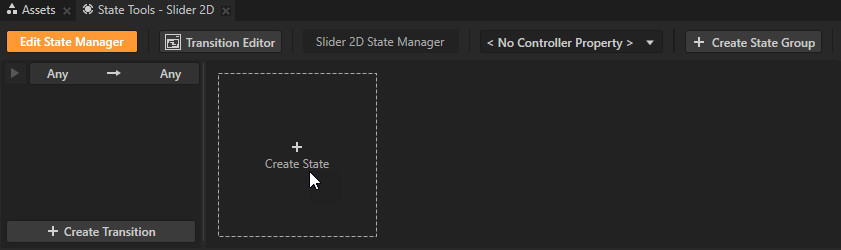
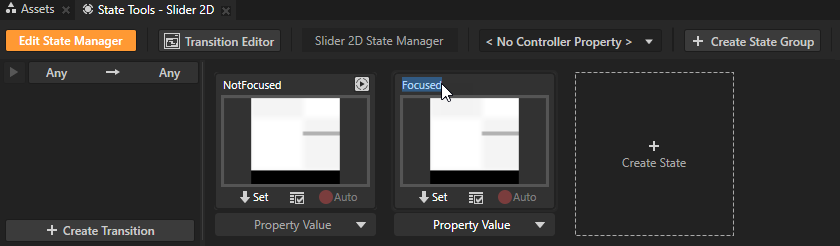
In the State Tools click Create State twice to create two states, double-click the name of each state, and rename the states to NotFocused and Focused. The NotFocused state defines the state of your application when one of the sliders is not focused and the Focused state when one of the sliders is focused.
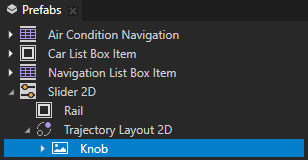
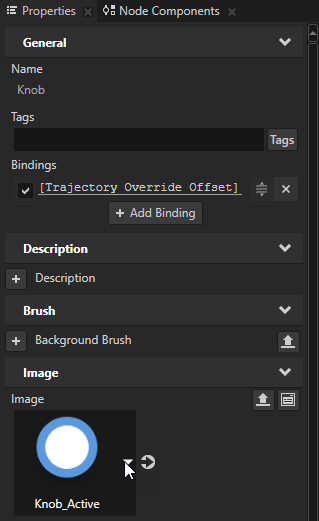
In the Prefabs > Slider 2D > Trajectory Layout 2D select the Knob node and in the Properties set the Image property to Knob_Active.png. You use the image to indicate when a slider is focused.
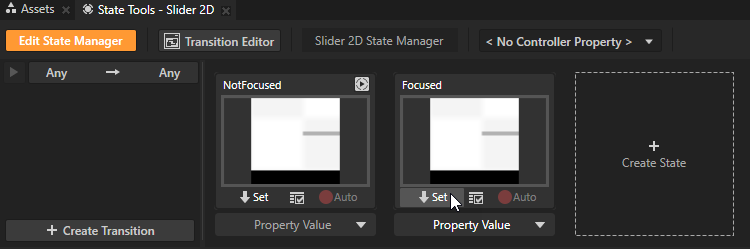
In the State Tools click below the Focused state to save the current image to that state. You display a different image of the slider knob when the slider is focused.
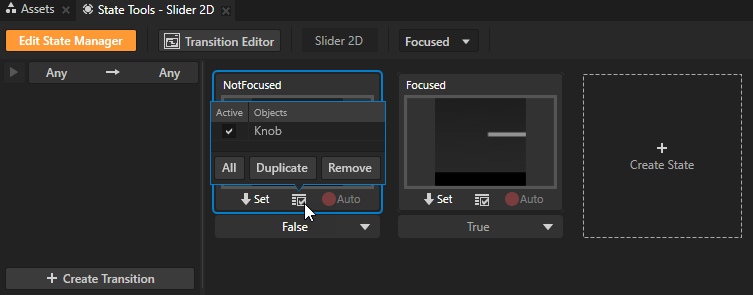
In the Prefabs > Slider 2D > Trajectory Layout 2D select the Knob node, in the Properties set the Image property to Knob.png, and in the State Tools click below the NotFocused state to save the current image to that state.
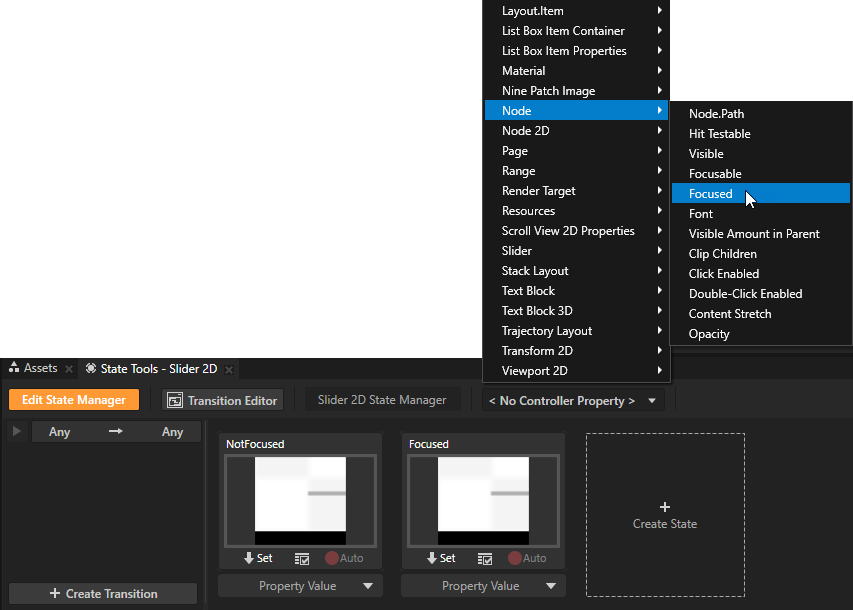
In the State Tools click the <No Controller Property> dropdown menu and select the Node > Focused property. When you set the Focused property as the controller property for the state manager that controls the states of the sliders, the state manager transitions to a state based on the value of that property. When a slider is in focus, the appearance of the slider knob changes.
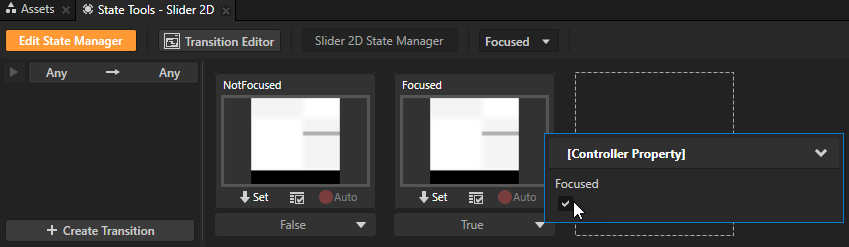
In the State Tools under the Focused state set the value of the Focused property to True.
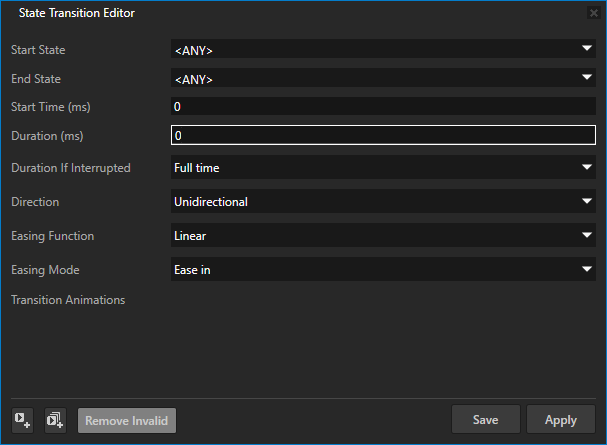
In the State Tools click Any -> Any to open the State Transition Editor and in the State Transition Editor set the Duration to 0. You set the state transition for the slider knob to happen immediately when the user presses the ↑ (Up Arrow) key on their keyboard.
In the State Tools click Edit State Manager to deactivate the State Tools.
When the Page node Driver is active, use the → (Right Arrow) and ← (Left Arrow) keys to navigate between the Driver and Passenger screens. To adjust the slider values, press the ↑ (Up Arrow) key to set focus to the Slider 2D node, and use the → (Right Arrow) and ← (Left Arrow) keys to set the slider value. Press the ↓ (Down Arrow) key to set the focus back to the Page nodes Driver or Passenger.





 below the Focused state to save the current image to that state.